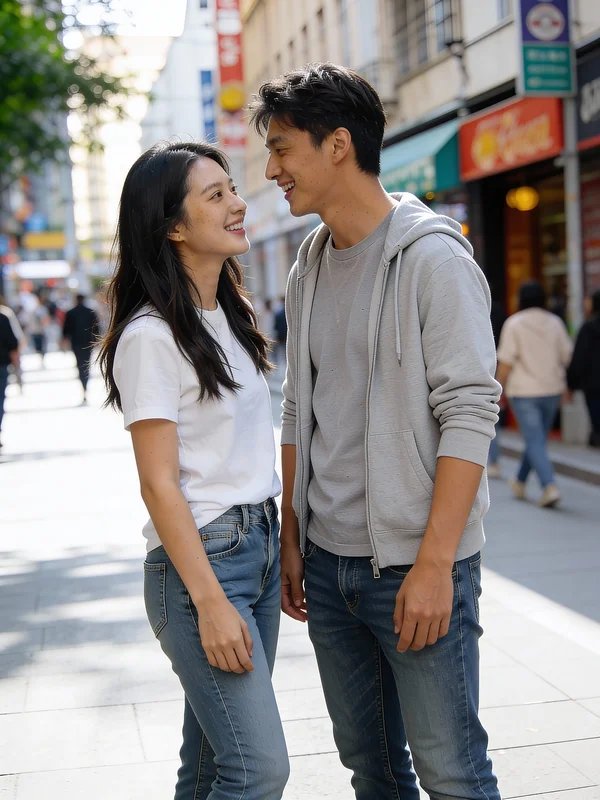
Natural
Seamless Blend
The AI prioritizes a natural, unnoticeable blend with the existing background.
Remove person, seamless blend, natural light, realistic texture, clean output.
Turn a clear creative brief into a polished person-removal edit.
Start with an uploaded image and describe the composition, lighting, color, styling, and subject detail that matter for this person-removal edit. Generate a first image, compare variations, and refine the direction until it fits your intended story, campaign, or design.
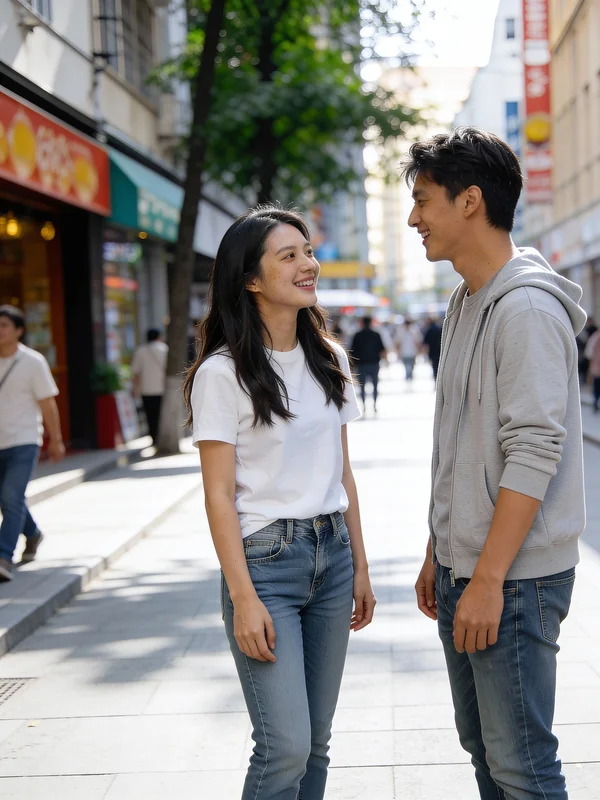
Use this example to study the framing, detail, and creative decisions that make a person-removal edit feel intentional rather than generic.
Six visual directions for how the AI fills the void after a person is removed.
The AI prioritizes a natural, unnoticeable blend with the existing background.
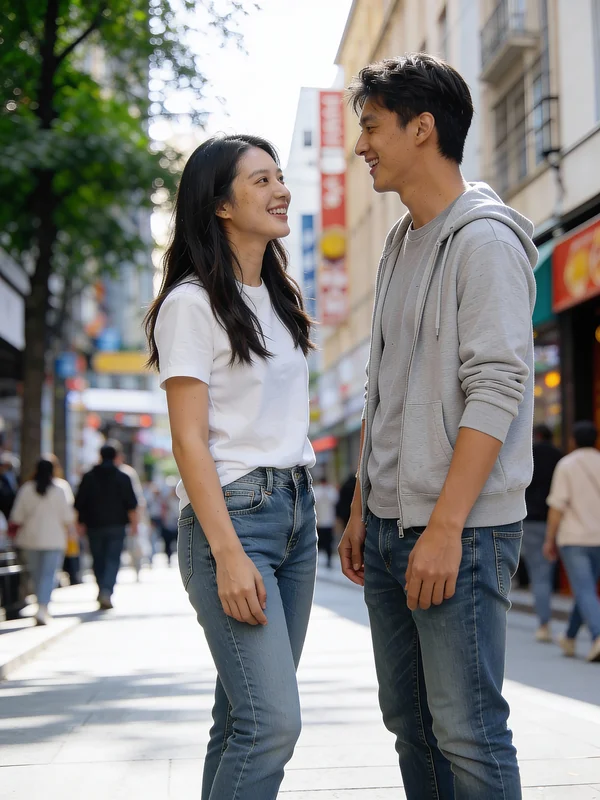
Focuses on sharp edges and clear details in the reconstructed background.
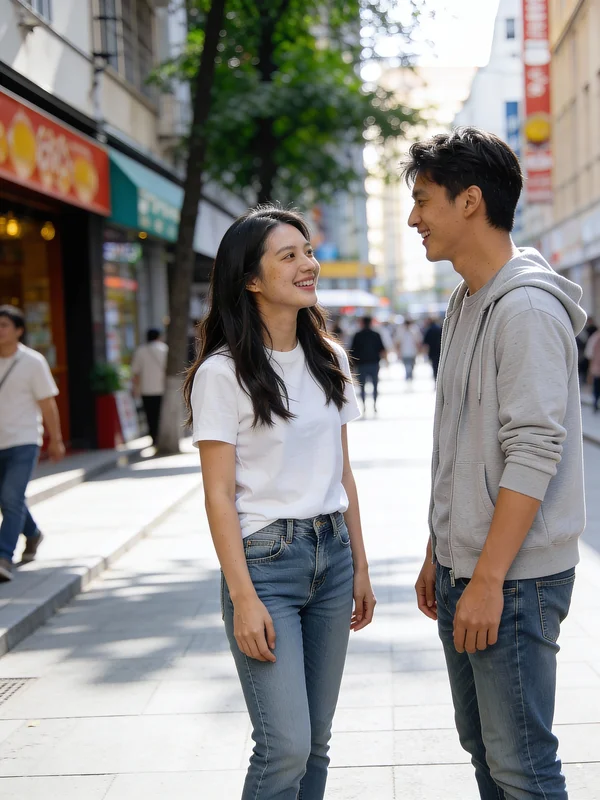
Emphasizes softer transitions and a more diffused look for the filled area.
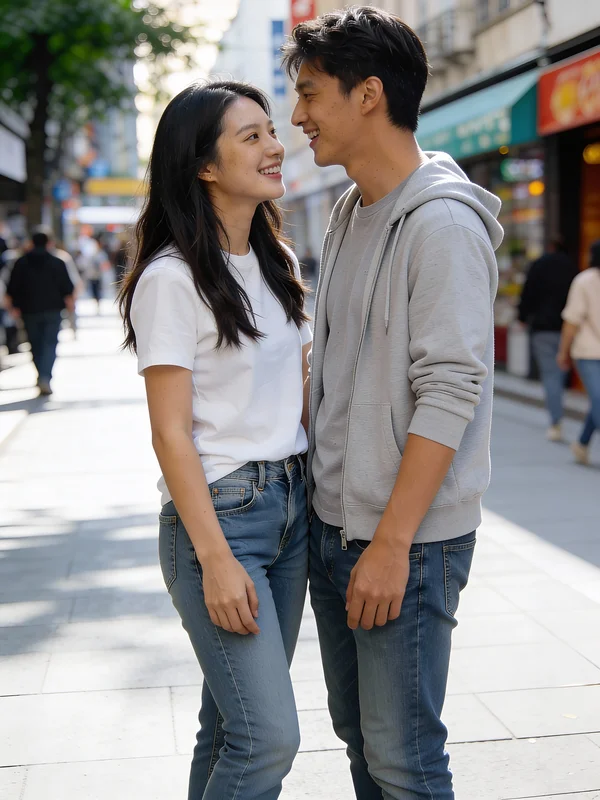
Aims for an exact match of intricate background patterns and textures.
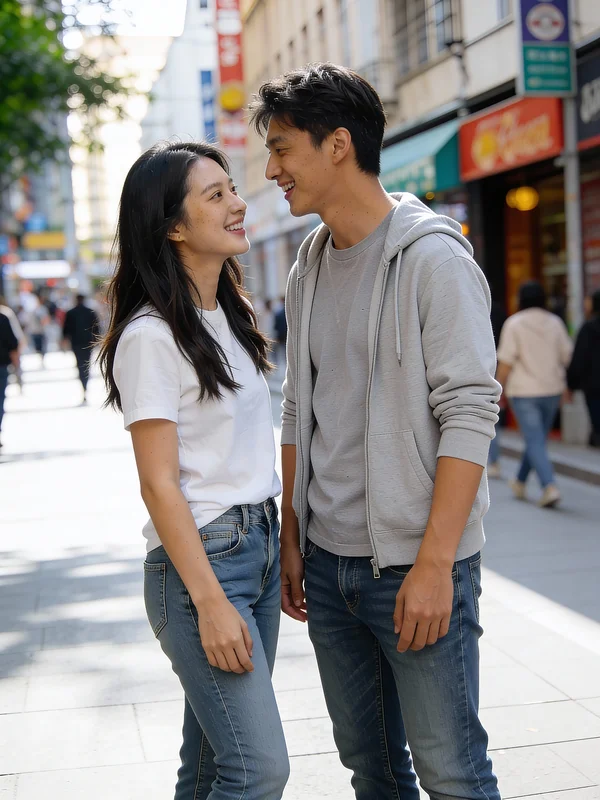
The AI intelligently extends the surrounding environment into the empty space.
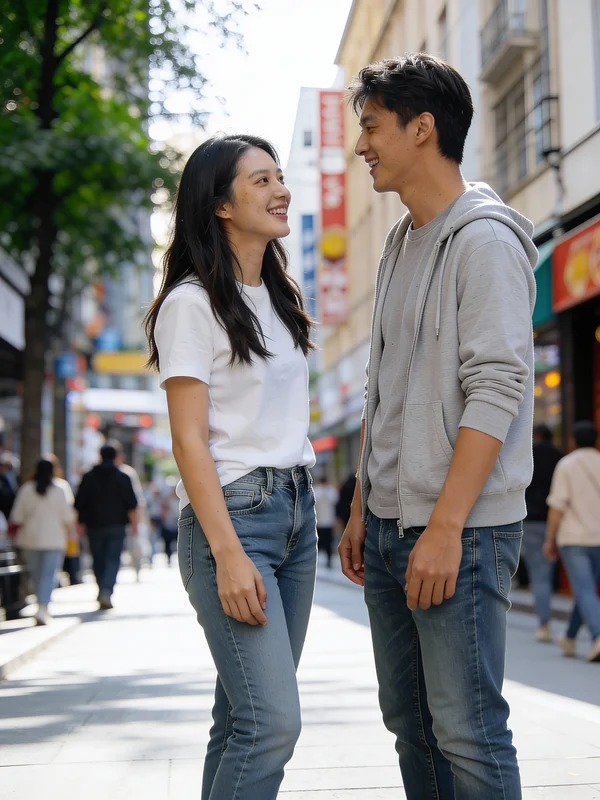
Ensures the resulting image is free from any visual distractions or remnants.
See how Seedance 2.5's AI Image Editor removes people across various scenarios.
Clean up interior and exterior property photos for marketing without human presence.
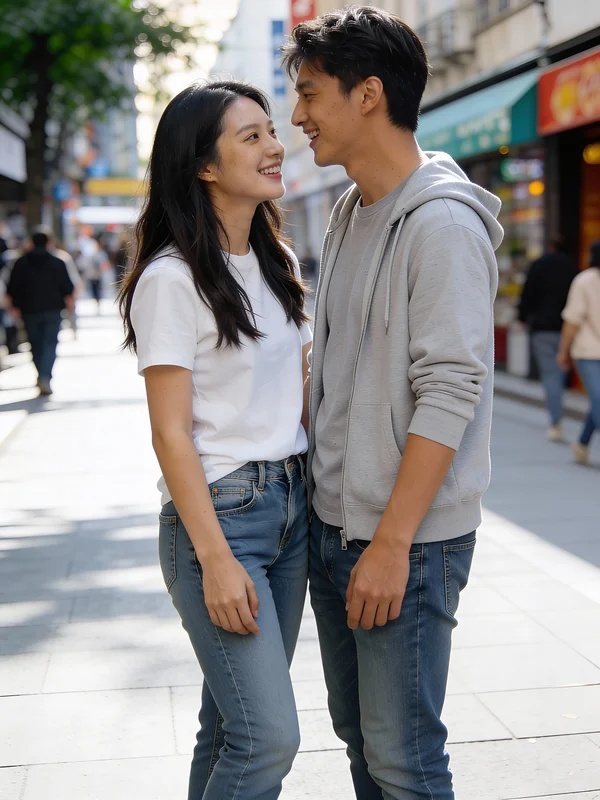
Eliminate assistants or unwanted figures from product images for a clean focus.
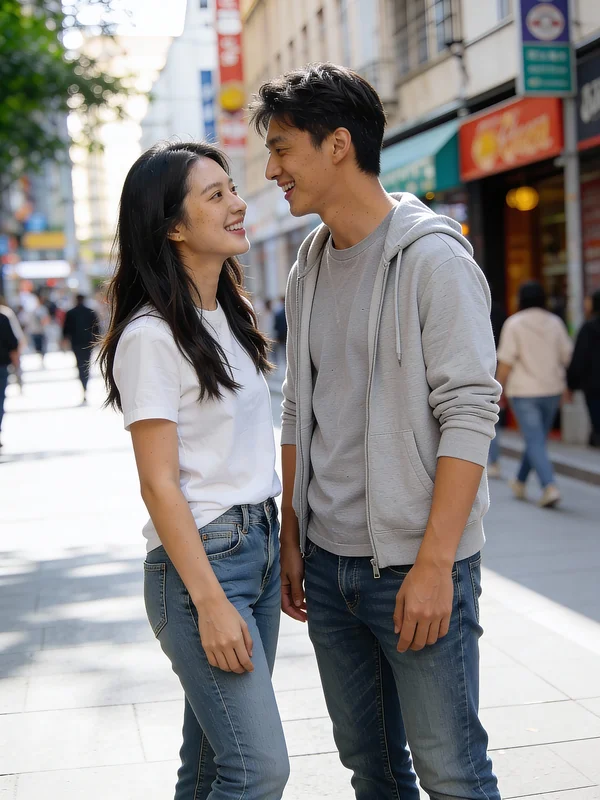
Remove tourists or bystanders from scenic travel and landscape photographs.
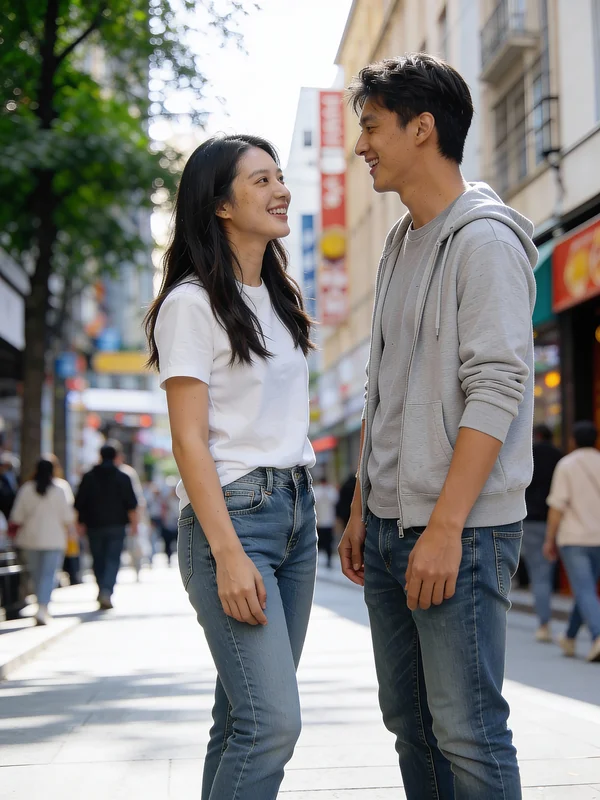
Erase photobombers or unwanted individuals from social media-ready content.
Move from a broad idea to a usable image with clearer direction, faster comparisons, and a practical handoff into Seedance 2.5.
Shape the composition, lighting, color, and subject details for a more intentional person-removal edit result.
Use a clear reference and focused direction to keep the person-removal edit look coherent across variations.
Refine the strongest output for social posts, campaign concepts, thumbnails, or design exploration.
Compare alternate framing and styling choices before selecting the final person-removal edit.
Use this workflow when you need a specific person-removal edit rather than a generic asset. Define the intended audience, platform, and visual or tonal direction before generating.
Describe concrete production cues such as composition, lighting, color, styling, and subject detail. Specific direction gives the generator a clearer target and makes each revision easier to evaluate.
Start with the prepared workflow, refine the details that define this person-removal edit, then keep the best result or continue editing in Seedance 2.5.
Open the generator and add an uploaded image that clearly establishes the subject and creative direction.
Describe composition, lighting, color, styling, and subject detail, then remove conflicting instructions that could weaken the person-removal edit.
Compare the generated variations, keep the strongest image, and refine it for the final use.
Practical answers about creating, refining, and using a person-removal edit in Seedance 2.5.
It creates a focused person-removal edit from an uploaded image. Use the available controls to guide composition, lighting, color, styling, and subject detail, then compare variations before choosing the final result.
Use a clear, high-quality source that makes the main subject easy to identify. A focused source gives the person-removal edit a stronger visual or tonal foundation.
Prioritize composition, lighting, color, styling, and subject detail. Add only details that directly support the intended person-removal edit, and remove instructions that compete with one another.
Keep the strongest person-removal edit as a finished asset or continue refining it with another Seedance 2.5 tool. A focused source and concise prompt make later revisions easier to control.
Commercial use depends on your plan, the applicable model terms, and the rights attached to your source material. Review the current terms before publishing or selling the result.
Move from this person-removal edit into the next Seedance 2.5 tool without losing the direction established in your selected result.
Create entirely new images from text descriptions or conceptual prompts.
Modify existing images by applying new styles, elements, or transformations.
Apply artistic styles from one image to another or blend various aesthetic elements.
Upload your own reference images for precise control over AI-driven edits.
Use complementary image, video, and audio tools when the project needs additional editing, motion, sound, or format changes.
Quickly remove people and generate clean backgrounds for rapid iterations.
Achieve the highest quality background reconstruction and detail matching.
For specific, localized adjustments beyond just person removal, without affecting the whole image.
Explore diverse creative interpretations for background fill and scene context.
Start with an uploaded image, direct the details that define the person-removal edit, and refine the strongest result in Seedance 2.5.