Grok Imagine Image
Create and edit images with the Grok Imagine Image model
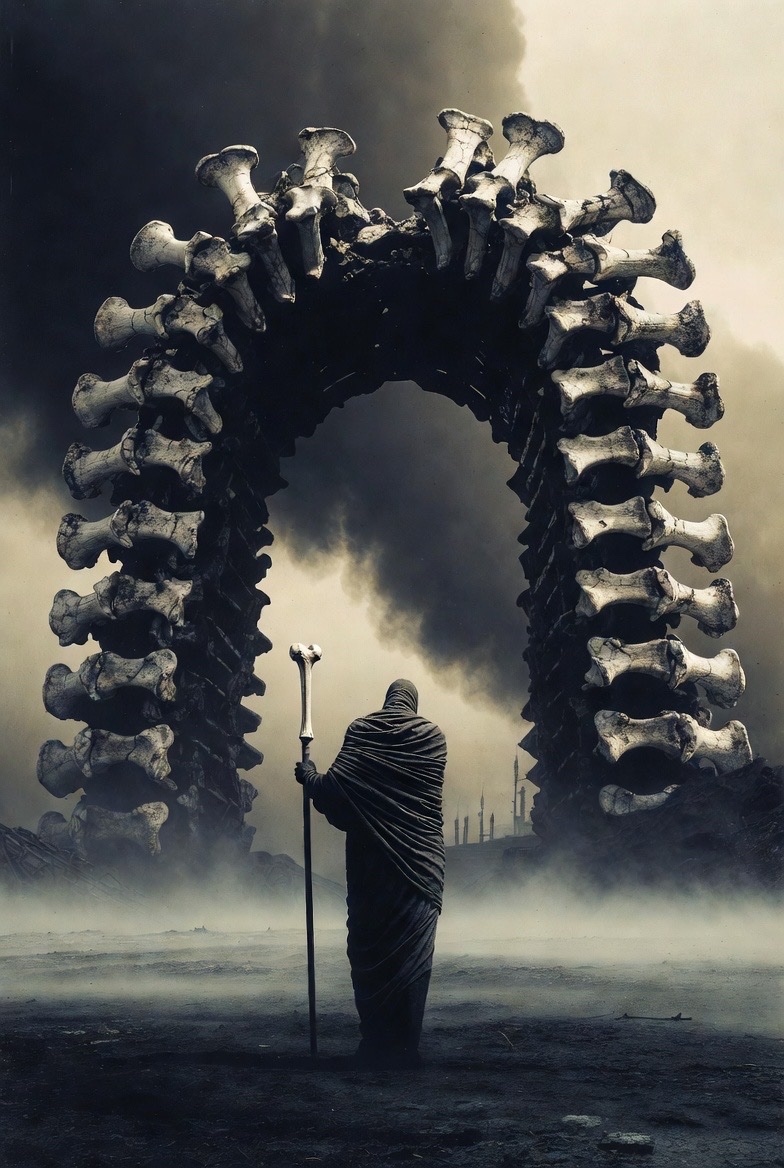
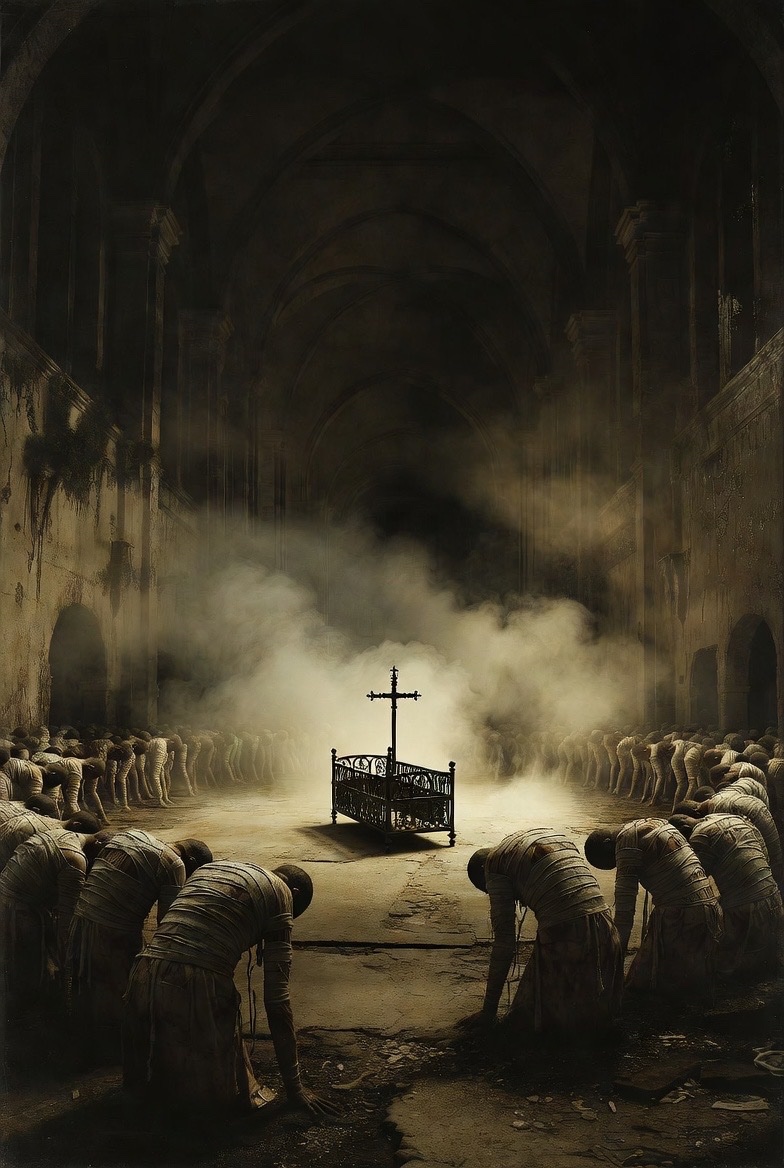
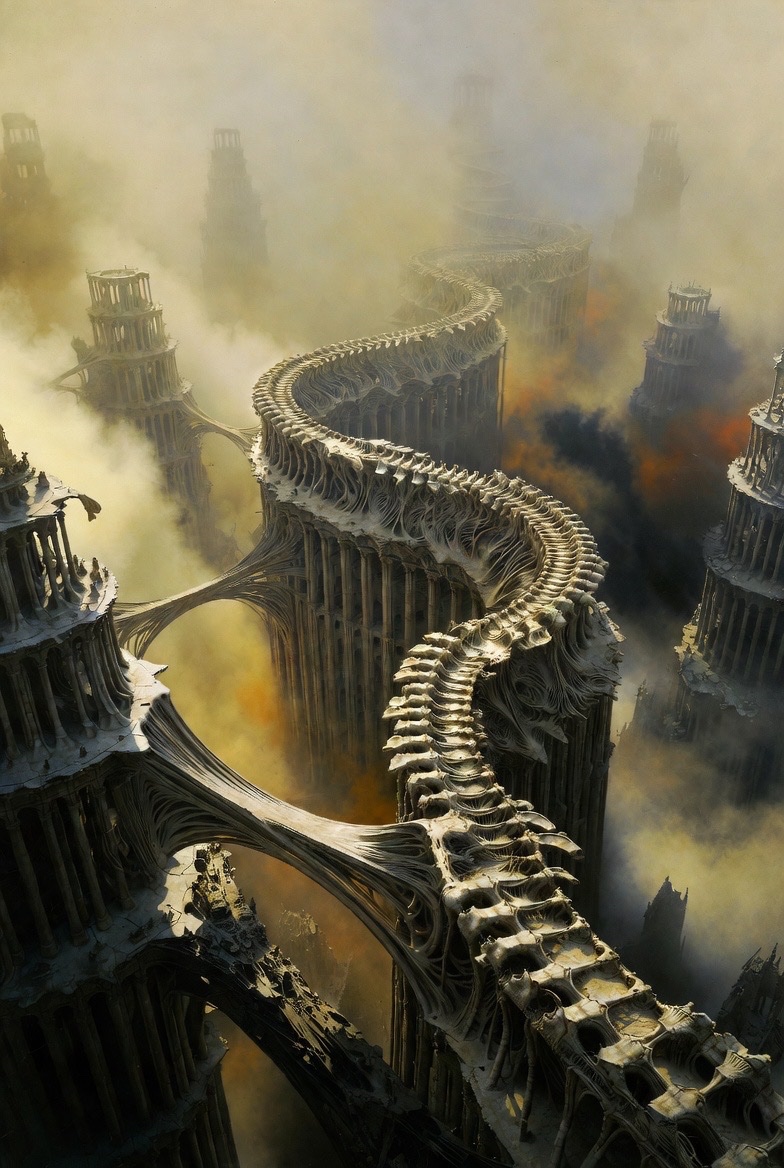
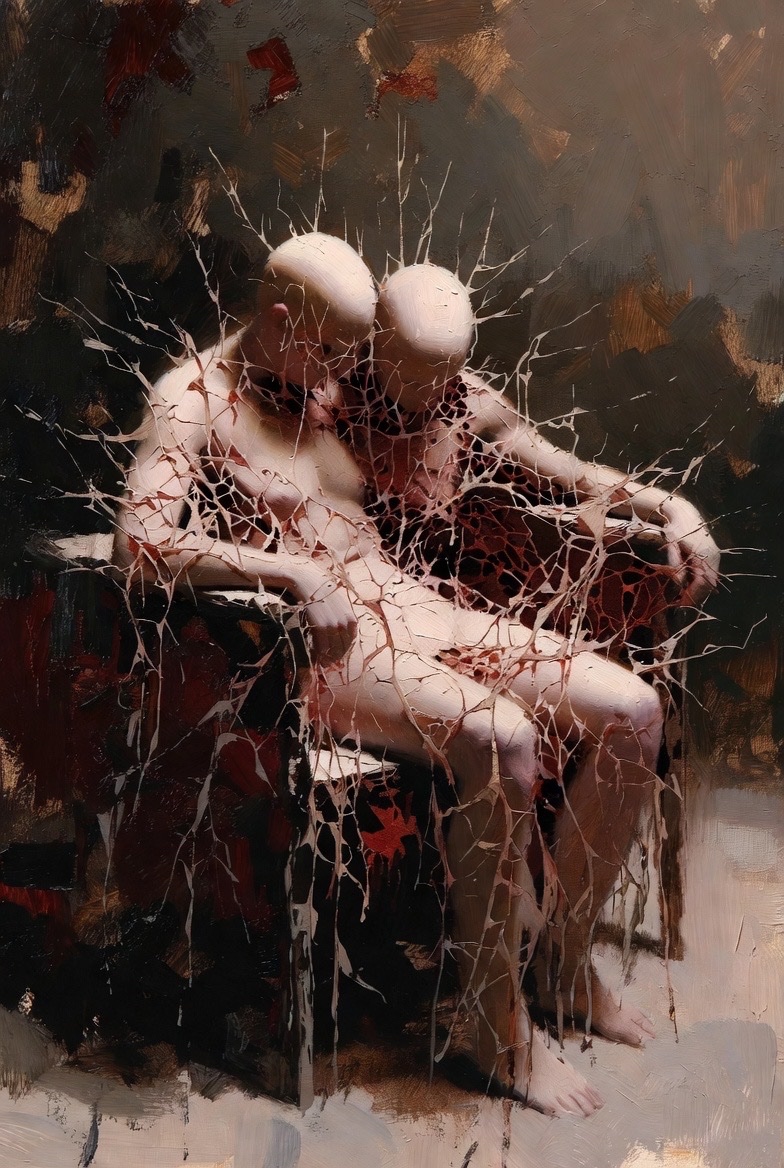
Create with Grok Imagine Image
Practical controls and focused iteration for Grok Imagine Image
Start with a clear creative brief, use the controls available for Grok Imagine Image, and compare focused variations before selecting the final images.

Text-to-Image + Image Editing
Use Grok Imagine Image to generate images from a text prompt, then iterate with edits (where supported) to adjust details, style, or composition while keeping the core intent.
Multiple Variations, Faster Iteration
Generate several outputs per prompt so you can compare options quickly. Lock onto the strongest candidate, then refine with smaller prompt changes instead of starting over.
Format Controls for Real Use
Choose an aspect ratio, output size, and image format (URL or base64) depending on your integration. This helps you generate assets that fit common UI, social, and product image workflows.
API-Ready by Design
Grok Imagine Image can be called as a model in the xAI image generation API, making it a strong fit for building tools, automations, and creative pipelines around the grok imagine image model.
Grok Imagine Image FAQ
Common questions about Grok Imagine Image
Practical guidance on inputs, prompts, generation options, exports, and responsible use for Grok Imagine Image in Seedance 2.5.
Still have questions? Contact our support team
Start creating with Grok Imagine Image
Generate, iterate, and refine with the Grok Imagine Image model
Open the Grok Imagine Image workflow in Seedance 2.5, define a clear direction, compare the generated variations, and export the result that best fits your project.
- Generate images from a single prompt
- Create multiple variations per prompt
- Refine with focused edit prompts (where supported)
- Export in practical formats for real workflows