Kling 3.0Create high-quality clips with Kling 3.0 (text-to-video and image-to-video)
Explore Kling 3.0 inside the Seedance 2.5 creative studio. Review examples and practical prompt guidance, then use the available workflow to create and refine videos for your project.
Create with Kling 3.0
Practical controls and focused iteration for Kling 3.0
Start with a clear creative brief, use the controls available for Kling 3.0, and compare focused variations before selecting the final videos.
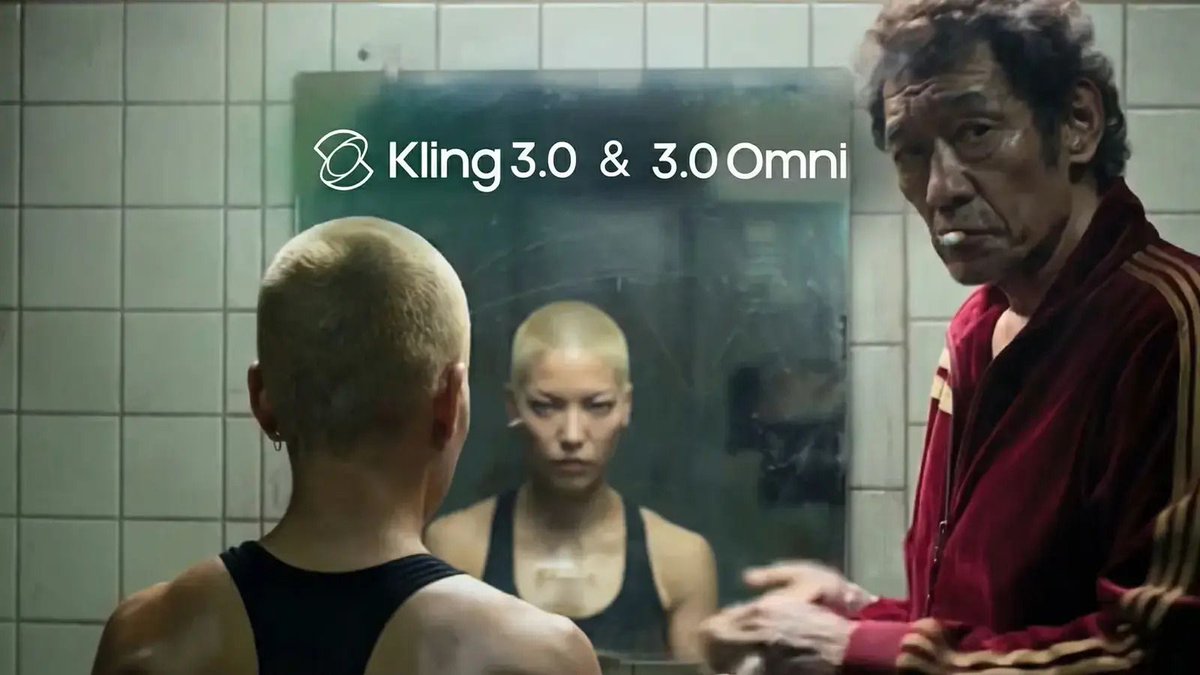
Kling 3.0 Prompt Control
Generate videos from text or a start image and guide action, camera movement, lighting, and pacing. Kling 3.0 is designed to follow detailed instructions while maintaining a coherent visual style.
Multi-shot Storytelling
Use multi-shot prompts to split a single video into multiple shots with per-shot prompts and durations—great for mini narratives, transitions, and structured storyboards.
Start + End Keyframes
In image-to-video, animate a start image and optionally provide an end image to steer how the clip concludes—ideal for before/after, product reveals, and controlled transformations.
Elements + Native Audio
Add element assets (image sets or videos) and reference them in your prompt for consistent characters/objects. Enable native audio and optionally supply voice IDs for dialogue-driven scenes.
Kling 3.0 FAQ
Common questions about Kling 3.0
Practical guidance on inputs, prompts, generation options, exports, and responsible use for Kling 3.0 in Seedance 2.5.
Still have questions? Contact our support team
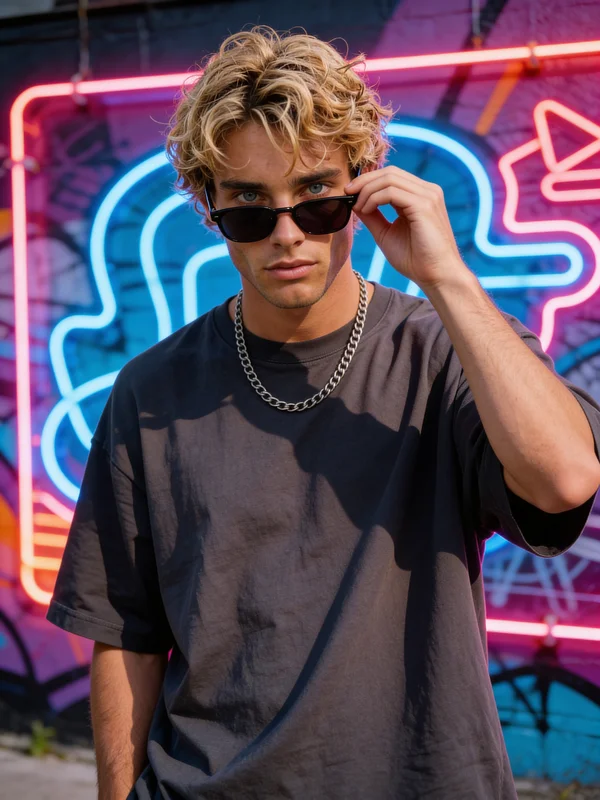

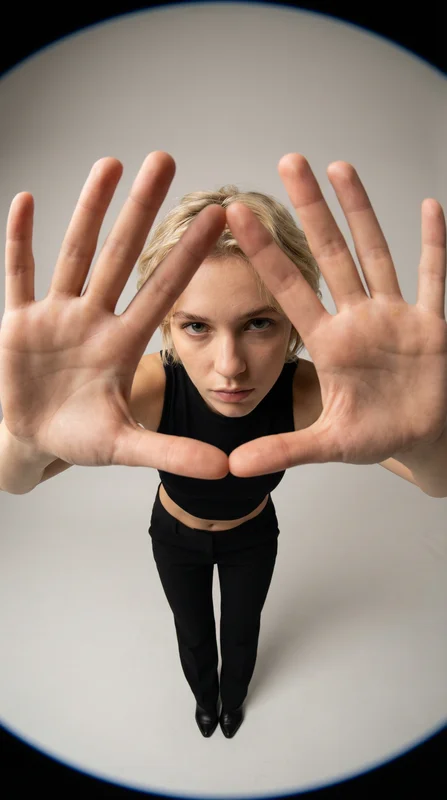

Start creating with Kling 3.0
Kling 3.0 turns text and images into publish-ready video
Open the Kling 3.0 workflow in Seedance 2.5, define a clear direction, compare the generated variations, and export the result that best fits your project.
- Kling 3.0 text-to-video and image-to-video
- Optional end keyframes for guided transitions
- Elements for consistent characters and objects
- Native audio generation with optional voice IDs